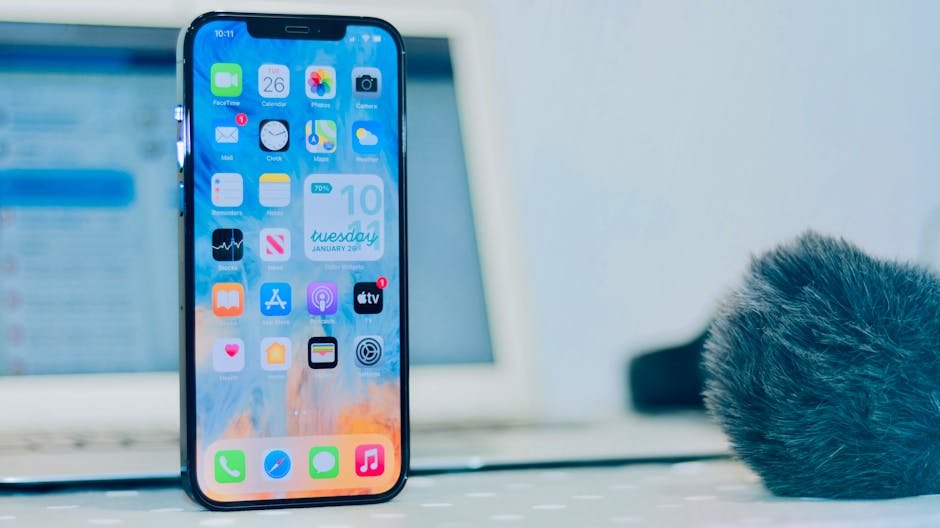
Apple introduced the feature as part of the initial iOS 26.0 release. Spatial scenes apply a depth effect to photo wallpapers, shifting the image in response to the iPhone’s movement. The same effect is also available within the Photos app and its Home Screen widget.
Using a suggested spatial wallpaper
When creating a new wallpaper in iOS 26, a dedicated row labelled “Spatial Scenes” appears with pre-selected images that are already optimised for the effect. Tapping any of these applies the 3D effect automatically.
Applying the effect to a custom photo
The 3D spatial wallpapers effect can also be applied manually to almost any image in the Photos library. To do so:
- Open Settings and navigate to Wallpaper
- Tap Add New Wallpaper
- Select Photos from the top left
- Choose the desired image
- Tap the geometric icon near the lower right of the screen
- Wait for the spatial scene to generate, then tilt the iPhone from side to side to preview the effect
- Tap Add to save
Availability
Spatial scenes are available on iPhone models compatible with iOS 26. The feature is included in the base iOS 26.0 release and requires no additional downloads or settings.
For iPhone users across the Middle East looking to personalise their device with the latest iOS 26 features, spatial wallpapers offer one of the more visually distinctive options introduced in this update.