
RuneScape: Dragonwilds Arrives on Xbox for the First Time in 25 Years
Jagex's survival RPG, RuneScape: Dragonwilds, will leave Early Access and launch as a full 1.0 release on September 15, 2026.
Output all PS4 audio through traditional headphones or earbuds via the DualShock 4. Here's our guide to connecting your headphones to your PS4 Controller .

Here’s our guide to output all PS4 audio through traditional headphones or earbuds via the DualShock 4 controller. All you need is a pair of earphones with a 3.5mm jack, and you’re pretty much good to go.
Here’s how you can output all PS4 audio through the DualShock 4, using a pair of standard headphones or earbuds.
Connect any pair of headphones with a 3.5mm adapter into the slot on the bottom of the DualShock 4 controller, located between the underside of the analogue sticks.
This is the button located between the analogue sticks in the lower half of the DualShock 4 controller. Hold this down until the Quick Menu appears on the left of the screen.
At the top of the menu, select the ‘Sound/Devices’ icon using the X button on the DualShock 4 controller. You’ll be taken to a second tier of the Quick Menu screen.
Scroll down to ‘Output to Headphones’ option using the d-pad and press the X button. Select the option ‘All Audio’ from the sub-menu and press the X button again. You can change the volume by pushing the d-pad left and right in the ‘Volume Control (Headphones)’ toggle located just above the ‘Output to Headphones’ option. If you’d prefer to just hear voice chat audio through your headphones, you can select that in the ‘Output to Headphones’ option again.
The console should remember your default settings, so whenever you connect a pair of headphones to your DualShock 4, it should work automatically moving forward.


Jagex's survival RPG, RuneScape: Dragonwilds, will leave Early Access and launch as a full 1.0 release on September 15, 2026.
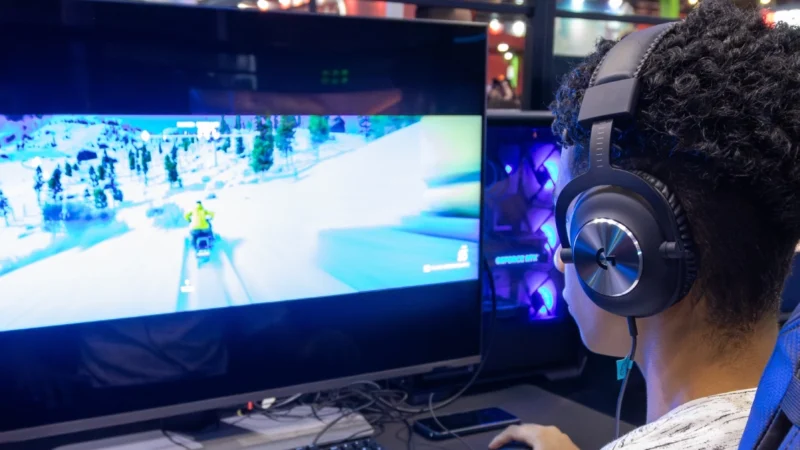
Reduce Input Lag on a Gaming Monitor: fixing it usually means working through your settings systematically rather than blaming any single piece of hardware.
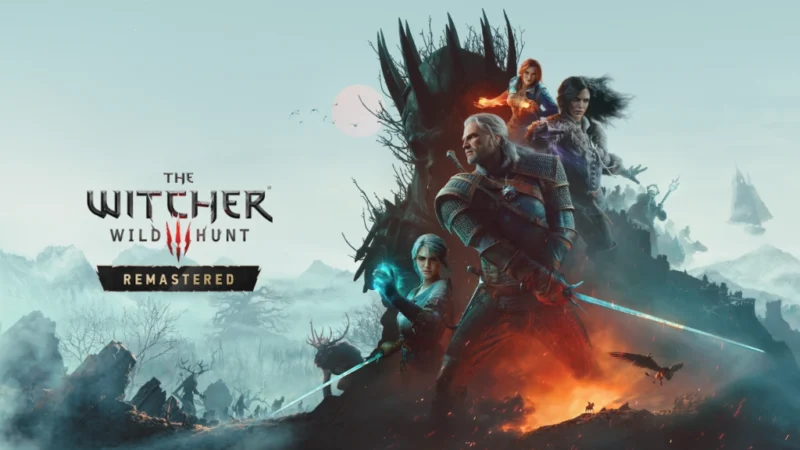
The Witcher 3: Wild Hunt Remastered launches September 29 on PC, PlayStation 5, and Xbox Series X|S as a free upgrade for anyone who already owns the base game.
 GDGTME Team