
How to Fix Common Wi-Fi and Router Problems at Home
How to Fix Common Wi-Fi and Router Problems at Home: A slow or unreliable Wi-Fi connection does not necessarily mean that your router needs to be replaced.
Input lag is the delay between pressing a button or moving your mouse and seeing that action register on screen, and it's one of the most misunderstood problems in PC gaming because it can come from several different sources at once. Fixing it usually means working through your settings systematically rather than blaming any single piece of hardware.
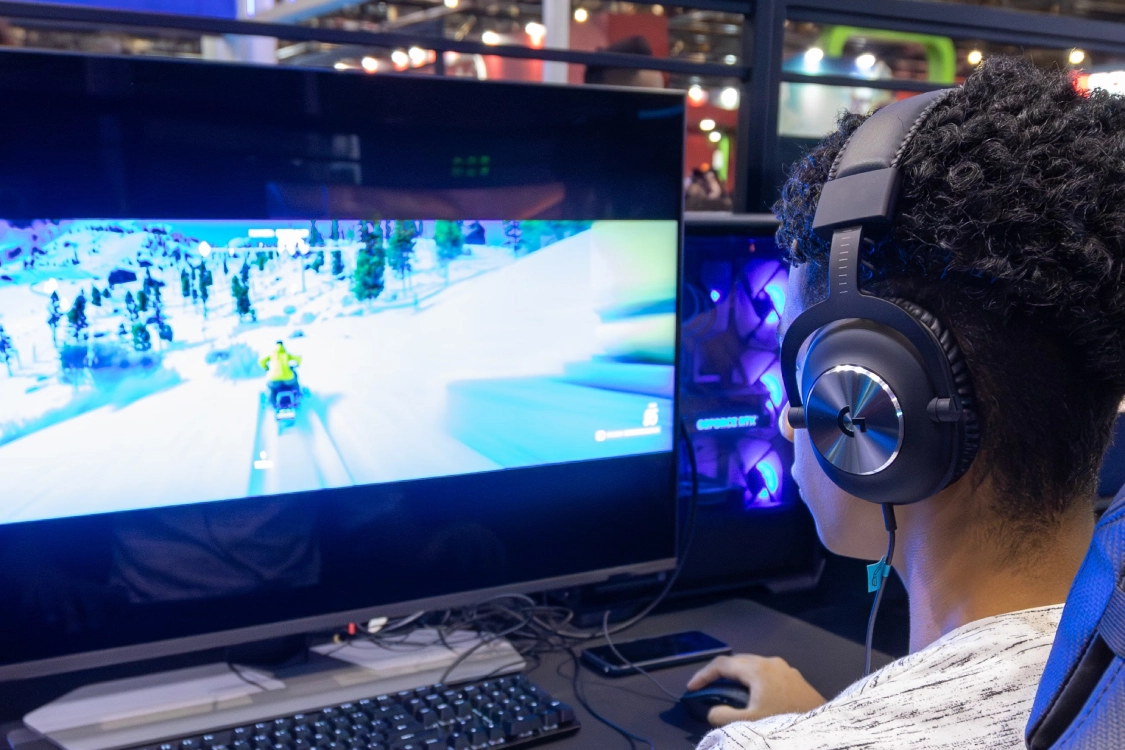
Most gaming monitors ship with picture processing features like motion interpolation, dynamic contrast, and noise reduction turned on by default, and all of them add processing delay in exchange for a slightly smoother or punchier image. Look in your monitor’s on-screen menu for a setting usually called Game Mode, Fast Response, or Low Input Lag, and enable it — this typically disables the extra processing and can shave several milliseconds off response time on its own. It’s often the single biggest and easiest fix available.
A monitor can only display as many frames per second as its refresh rate allows, so a 60Hz monitor caps out at 60 frames per second no matter how powerful your GPU is. If your game is rendering more frames than the monitor can show, those extra frames get queued or dropped, adding latency. Enable V-Sync alternatives like NVIDIA’s G-SYNC or AMD’s FreeSync if your monitor supports them, which synchronize the display and GPU without the added lag that traditional V-Sync introduces. If you don’t have either, capping your frame rate a few frames below your monitor’s refresh rate in-game often reduces lag more reliably than leaving it uncapped.
DisplayPort generally offers lower latency than HDMI at high refresh rates, and using the wrong cable for your monitor’s maximum supported refresh rate can silently cap your performance without any obvious warning. If your monitor supports 144Hz or higher, confirm you’re actually using a cable rated for that refresh rate — an older or budget HDMI cable bundled in the box may not be capable of it, forcing the display back down to a lower rate.
Wireless peripherals have improved enormously, and a good 2.4GHz wireless mouse using a dedicated dongle is generally fast enough for competitive play, but Bluetooth connections are noticeably slower and less consistent by comparison. If you’re using a Bluetooth mouse or keyboard for gaming, switching to a wired connection or a 2.4GHz wireless receiver is a straightforward way to cut input delay, especially in fast-paced competitive titles where every millisecond matters.
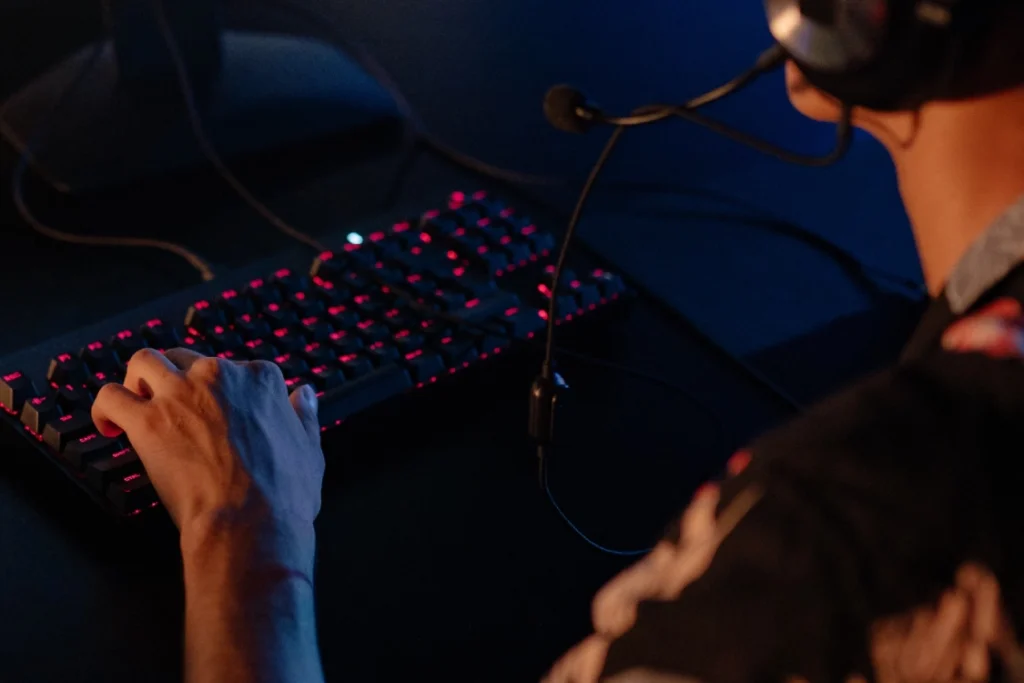
Polling rate determines how often your mouse reports its position to your PC, measured in Hz. Most mice default to 125Hz or 500Hz, but many gaming mice support 1000Hz or higher through their companion software. Raising this reduces the delay between physically moving the mouse and that movement registering, though very high polling rates can occasionally cause stability issues on older systems, so it’s worth testing before assuming higher is always better for your specific setup.
Recording software, overlays, browser tabs with video playing, and even some RGB lighting control apps can quietly consume CPU or GPU resources in the background, adding frame-time inconsistency that feels like input lag even when your average frame rate looks fine. Closing unnecessary background apps before a gaming session, and checking your GPU control panel for any overlay features you don’t actually use, can smooth out these inconsistent frame times.
If you’ve worked through all of the above and lag still feels noticeable, it may come down to your monitor’s actual response time rating, measured in milliseconds and listed in its spec sheet. Budget monitors, particularly older VA panels, can have response times high enough to introduce visible ghosting and perceived lag no matter how the settings are configured. In that case, the fix isn’t a setting at all — it’s the panel itself, and no amount of tweaking will fully compensate for genuinely slow underlying hardware.
Also Read: How to Fix Common Wi-Fi and Router Problems at Home


How to Fix Common Wi-Fi and Router Problems at Home: A slow or unreliable Wi-Fi connection does not necessarily mean that your router needs to be replaced.
Getting a new SIM card in the UAE is a straightforward process, but every number must be registered against valid identification before it can be activated.

Dubai airport free WiFi at Dubai International Airport (DXB) and Al Maktoum Airport (DWC), including tips for iOS, Android, and staying secure on public networks.
 GDGTME Team
 Joshua James