
5 UGREEN Charging Accessories to Consider for Your Next iPhone
5 UGREEN Charging Accessories to Consider for Your Next iPhone
If you have bought a pretty beefy monitor boasting 144Hz frames or more, ever wondered to yourself if the cost really matches the difference in performance?
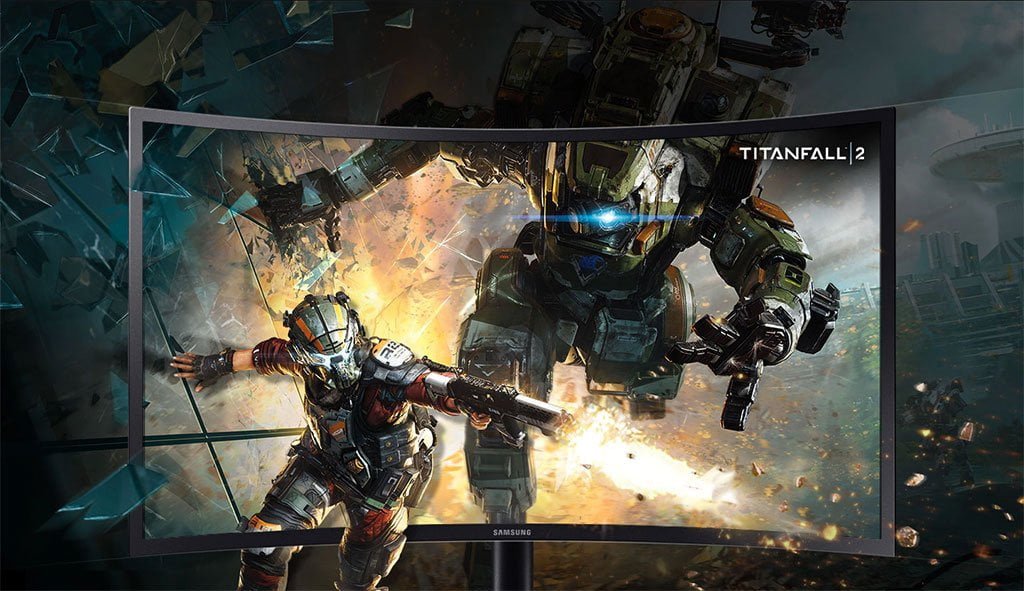
If you have bought a pretty beefy monitor boasting 144Hz frames or more, ever wondered to yourself if the cost really matches the difference in performance?
You want to get the most out of your monitor to experience those quick frame rates but not quite sure if the monitor is performing to its capabilities? I personally have come across this myself and would like to say that on some cases its true, but here is a way to check and fix the problem.
Please note that you should use the HDMI 2.0 connection or the DisplayPort 1.2 connection to enable the best frame rate possible.
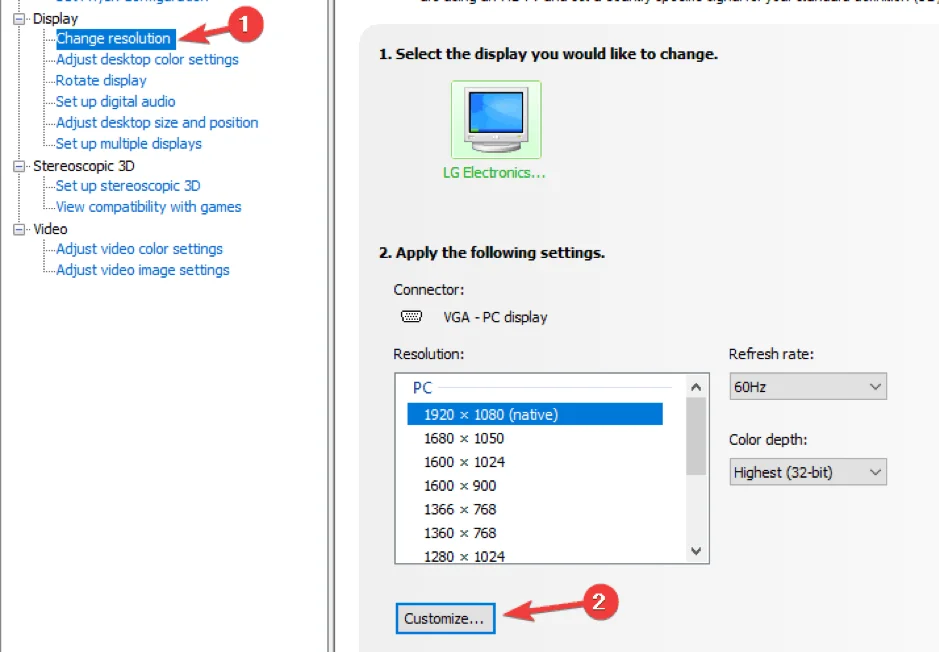
You need to optimise the graphics on your Nvidia or AMD graphics cards, which I will explain how to:
With AMD is not that difficult either:
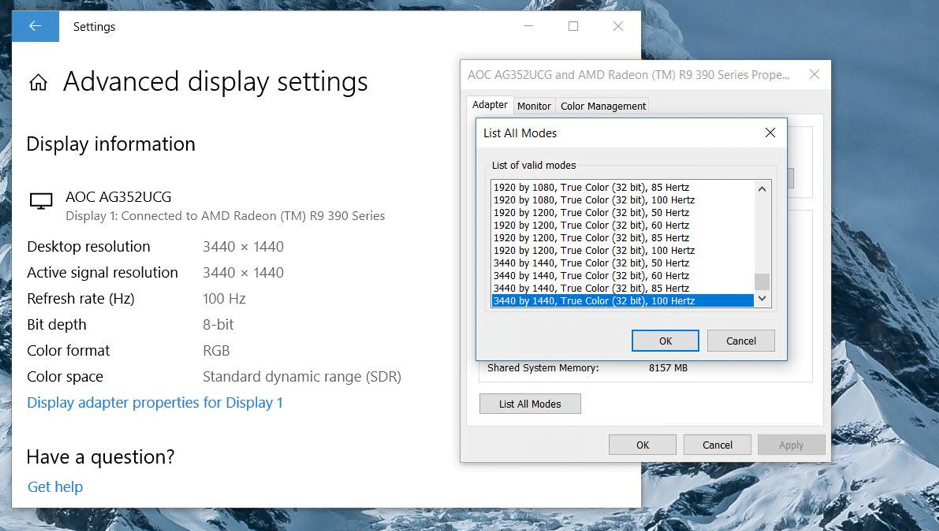
Now enjoy smooth frame rates! Also note that with driver updates for both Nvidia and AMD, there is a chance the update can change your settings back to default.

5 UGREEN Charging Accessories to Consider for Your Next iPhone
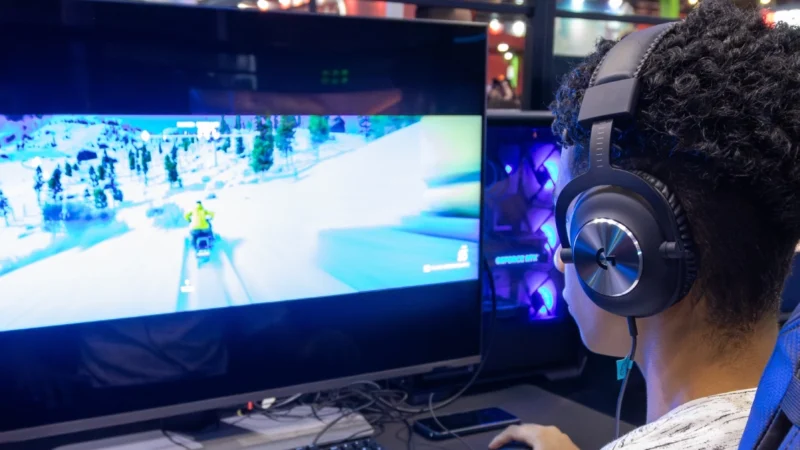
Reduce Input Lag on a Gaming Monitor: fixing it usually means working through your settings systematically rather than blaming any single piece of hardware.
How to Fix Common Wi-Fi and Router Problems at Home: A slow or unreliable Wi-Fi connection does not necessarily mean that your router needs to be replaced.
 GDGTME Team