
How to Reduce Input Lag on a Gaming Monitor or PC
Reduce Input Lag on a Gaming Monitor: fixing it usually means working through your settings systematically rather than blaming any single piece of hardware.
A dropped or sluggish Wi-Fi connection is almost never a sign your router is dying — most home network problems come down to a handful of common, fixable causes. Working through these in order will catch the vast majority of issues before you need to consider replacing any hardware.

A slow or unreliable Wi-Fi connection does not necessarily mean that your router needs to be replaced. Problems such as frequent disconnections, weak signals, slow speeds and devices failing to connect can often be traced to router placement, wireless interference, network congestion, outdated firmware or an issue with your internet service.
Before replacing your router or contacting your internet provider, there are several troubleshooting steps you can try yourself. This guide explains how to identify common Wi-Fi problems and what you can do to fix them.
The first step is to determine whether the problem is with your Wi-Fi network or the internet connection provided by your ISP. If possible, connect a laptop or desktop computer directly to your router using an Ethernet cable and run a speed test. Then compare the result with a device connected over Wi-Fi.
If the wired connection is also slow, the problem may be with your internet service, modem, ONT or the connection from your provider. If the wired connection performs normally while Wi-Fi remains slow, the problem is more likely to be related to wireless coverage, interference or your router’s configuration.
You should also test your Wi-Fi close to the router. If the connection is fast nearby but becomes significantly slower in another room, the problem is more likely to be related to Wi-Fi coverage.
Google notes that Wi-Fi performance can be affected by the distance between the device and router, physical barriers, the frequency band being used and the capabilities of the connected device.
Restarting your network equipment is one of the simplest ways to resolve temporary connection problems.
If you have separate modem or ONT and router devices:
Google recommends disconnecting the modem from power for several minutes before reconnecting it and waiting for the internet connection to be restored.
If your ISP provides a single device that combines the modem or ONT and router, restart that device according to the manufacturer’s instructions.
Do not press the reset button unless you intend to perform a factory reset. Restarting the router normally does not erase your settings, while a factory reset can remove your Wi-Fi name, password and other configuration settings.
Router placement can have a significant effect on Wi-Fi performance. For better coverage, place your router:
Walls, floors, furniture and other physical obstacles can reduce Wi-Fi performance, particularly when the connected device is far from the router. Google recommends placing a router in an open, central location and, where possible, off the ground.
Avoid hiding the router inside a TV cabinet simply to keep it out of sight. The cabinet and surrounding equipment can restrict the wireless signal.
You should also avoid placing the router directly next to devices that can generate radio interference, particularly those operating around the 2.4GHz band.
Most modern routers support both 2.4GHz and 5GHz Wi-Fi, while newer Wi-Fi 6E and Wi-Fi 7 equipment can also support the 6GHz band.
Each frequency has different characteristics.
Google confirms that devices connected to 2.4GHz may not achieve the same speeds available through 5GHz, while the 2.4GHz band generally provides greater range. If your router broadcasts separate network names for each band, try connecting a nearby laptop or phone to 5GHz and compare it with 2.4GHz.
For devices located farther from the router, 2.4GHz may provide a more reliable connection. However, many newer routers use a single Wi-Fi network name and automatically direct compatible devices to the most appropriate band. In this case, you may not need to manually select between 2.4GHz and 5GHz.
Wi-Fi uses radio frequencies that can be affected by other wireless networks and electronic equipment.
Interference can be particularly noticeable on 2.4GHz. Other Wi-Fi networks, Bluetooth devices, cordless phones, baby monitors, wireless cameras and some household appliances can contribute to interference. Microwave ovens can also cause temporary interference because they generate radio-frequency noise while operating.
If your Wi-Fi becomes unreliable at particular times or in a specific location, try moving the router away from other electronic equipment.
In apartment buildings and densely populated areas, neighbouring Wi-Fi networks can also contribute to congestion. Your router may provide options for selecting a wireless channel, but manually changing channels is not always necessary. Many modern routers automatically select and manage channels.
If your router has an automatic channel-selection option, it is generally best to follow the manufacturer’s recommended configuration unless you have identified a specific interference problem.
The number of devices connected to a home network can quickly add up. Phones, laptops, tablets, smart TVs, game consoles, security cameras, smart speakers and other connected devices may all be competing for network bandwidth.
Having many devices connected does not automatically mean that your router is overloaded. However, several devices performing bandwidth-intensive activities at the same time can slow the connection.
For example, a television streaming high-resolution video, a computer downloading a large file and a gaming console downloading an update can all consume significant bandwidth simultaneously. Google notes that multiple high-bandwidth activities can affect the performance experienced by other devices.
Open your router’s app or administration interface and check the list of connected devices. If you see an unfamiliar device, first make sure it does not belong to someone in your household. If you cannot identify it, changing your Wi-Fi password will disconnect devices using the old credentials.
Router firmware controls many of the device’s networking functions. Manufacturers release firmware updates to fix bugs, improve compatibility and address security vulnerabilities.
Check your router’s mobile app or administration interface for an option such as Firmware Update, Software Update, System Update or Router Update. Some newer routers can install updates automatically, but it is still worth checking that your router is receiving updates and is supported by the manufacturer.
Keeping router firmware updated is also important from a security perspective. CISA recommends keeping router firmware current because updates can address vulnerabilities affecting network equipment. If your router is supplied and managed by your ISP, firmware updates may be handled automatically by the provider.
If only one device cannot connect to your Wi-Fi while everything else works normally, the problem may be related to that device rather than the router.
Start by forgetting the Wi-Fi network on the affected device and reconnecting using the correct password. If you recently changed the router’s security settings, check whether the affected device supports the selected security standard.
This can be particularly relevant with older smart-home devices. Some legacy devices may experience compatibility problems with WPA3 or WPA3 transition modes. For your primary home network, use the strongest security mode that is supported by both your router and connected devices. Avoid using an unsecured Wi-Fi network unless there is a specific reason to do so.
If only one phone, laptop, TV or smart-home device is experiencing connection problems, restarting the entire network may not be necessary.
Try these steps:
If other devices work normally from the same location, this helps establish whether the problem is specific to the device.
A device can show a strong Wi-Fi signal while the actual internet connection remains slow. Run a speed test while connected close to the router. If possible, also repeat the test over Ethernet. Compare the results with the speed included in your internet plan.
Remember that the advertised speed of your internet connection and the speed experienced over Wi-Fi are not necessarily identical. Wi-Fi performance depends on factors including the device, distance from the router, wireless band, interference and network activity.
If both Ethernet and Wi-Fi are significantly slower than expected, contact your ISP to check for an outage, line problem or other service issue. Speed tests can also vary depending on the server being used and the level of congestion on your network or the ISP’s network.
Not every device needs to use Wi-Fi. If your desktop PC, gaming console, smart TV or work computer is located close enough to the router, connecting it with an Ethernet cable can provide a more consistent connection.
A wired connection eliminates wireless interference and signal-strength problems between that device and the router. Ethernet can be particularly useful for gaming, large downloads, video conferencing and other activities where connection stability is important.
Moving high-bandwidth devices to Ethernet can also reduce demand on your wireless network and leave more Wi-Fi capacity available for phones, tablets and smart-home devices.
If your internet connection works correctly but certain areas of your home consistently have weak Wi-Fi, the problem is probably coverage rather than your internet plan. A single router may struggle to provide reliable coverage throughout a large home, multi-storey property or a home with thick walls and other obstacles.
A mesh Wi-Fi system uses multiple nodes placed around the home to extend coverage. The additional nodes communicate with the main router and provide Wi-Fi closer to areas where the signal is weak.
However, placement matters. A mesh node should not simply be placed in the room where Wi-Fi is already unavailable. It needs to maintain a sufficiently strong connection to the main router or another mesh node. Google recommends placing mesh points in an open location and ensuring that they are not positioned too far from the router or another point.
Before buying a mesh system, check whether your existing router supports mesh networking or additional access points. You may be able to improve coverage without replacing your entire network.
Replacing the router should generally be one of the later troubleshooting steps.
Consider upgrading when:
If your router was supplied by your ISP, contact the provider before purchasing a replacement. Fibre connections can use provider-specific equipment or configurations, and some services may require an approved router or ONT.
You should contact your ISP if:
If your Wi-Fi works normally close to the router but becomes unreliable in other parts of the home, the problem is more likely to be related to wireless coverage or interference.
Most common home Wi-Fi problems can be diagnosed without immediately replacing your router. Start by establishing whether the problem affects the internet connection itself or only the wireless network.
Restart your modem and router, test the connection close to the router, check its placement and look for interference. You should also check connected devices, update the router’s firmware and test the connection over Ethernet where possible.
If the internet connection works correctly but some areas of your home still have poor coverage, a mesh Wi-Fi system or additional access point may be the better solution.
If the connection remains slow or unstable over Ethernet, however, the problem is more likely to be with the ISP, modem, ONT or incoming connection. In that situation, contacting your internet provider is the appropriate next step.
Your internet plan only determines the connection speed supplied by your ISP. Wi-Fi performance can also be affected by distance from the router, walls, interference, the Wi-Fi band being used, the connected device and the number of devices using the network.
Frequent disconnections can have several causes, including wireless interference, poor coverage, router problems, outdated firmware or an unstable internet connection. Restart the network, check the router’s placement and test the connection close to the router. If multiple devices disconnect at the same time, check the modem or ISP connection. If only one device disconnects, investigate that device first.
Use 5GHz when you want higher speeds and the device is relatively close to the router. Use 2.4GHz when you need greater range or are connecting a device that only supports 2.4GHz. Many modern routers automatically choose the appropriate band for each device.
There is no requirement to restart a properly functioning router on a fixed schedule. Restarting it can be useful when troubleshooting temporary connection problems. If you find yourself having to restart the router frequently to restore the connection, investigate the underlying problem instead of treating repeated restarts as a permanent solution.
Place the router in a relatively central, open location and, where practical, off the floor. Avoid enclosed cabinets and locations surrounded by large objects or electronic equipment that can interfere with the signal.
Not necessarily. A mesh system is useful when a single router cannot provide adequate coverage throughout the property. If your home has good Wi-Fi near the router but weak coverage in distant rooms, improving router placement or adding a mesh system or access point may help.
A normal restart does not normally erase the router’s configuration. A factory reset, however, can remove settings such as your Wi-Fi name, password and other network configurations.
Yes, particularly when several devices are actively using significant bandwidth at the same time. Streaming, gaming, large downloads, cloud backups and video calls can all contribute to congestion.
Test the connection over Ethernet if possible. If Ethernet is also slow or unstable, the problem may be with your ISP, modem, ONT or incoming connection. If Ethernet performs normally but Wi-Fi is slow, investigate the router’s placement, wireless bands, interference and connected devices.
Not immediately. First check your internet connection, restart the network, improve the router’s placement, check for interference, update the firmware and test different locations. If the router is old, unsupported or unable to provide adequate coverage or performance, replacing it may then be appropriate.
It can help in environments with significant wireless congestion, but modern routers often manage channel selection automatically. If you are experiencing interference, check your router’s wireless settings and manufacturer’s recommendations before manually changing channels.
Restart the device, turn Wi-Fi off and on, forget the network and reconnect, and check for software or driver updates. If other devices connect normally, the problem is likely specific to that device or its compatibility with the router’s settings.
Also Read: Our Router Reviews


Reduce Input Lag on a Gaming Monitor: fixing it usually means working through your settings systematically rather than blaming any single piece of hardware.
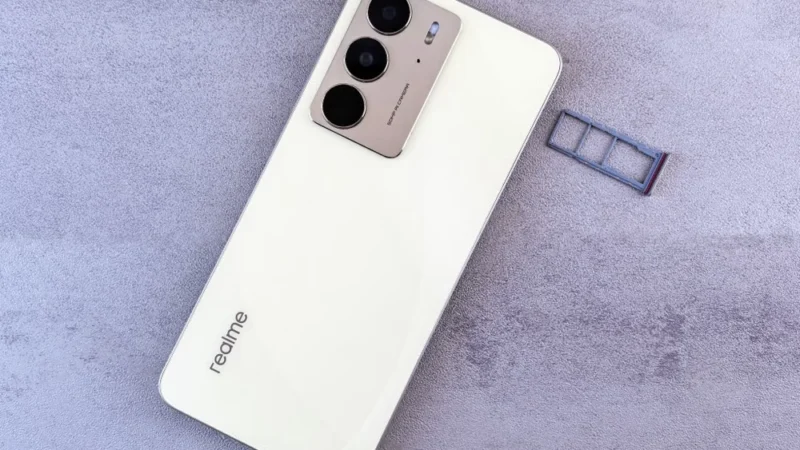
Getting a new SIM card in the UAE is a straightforward process, but every number must be registered against valid identification before it can be activated.

Dubai airport free WiFi at Dubai International Airport (DXB) and Al Maktoum Airport (DWC), including tips for iOS, Android, and staying secure on public networks.
 GDGTME Team
 Joshua James