
Ring Familiar Faces Launches in the UAE to Identify Known Visitors
Ring Familiar Faces is now rolling out in the UAE, allowing users to identify known visitors and receive personalized notifications from compatible Ring devices.
Auto brightness, Attention Aware Features and True Tone Display are the essential features to be looked over if your iPhone's brightness keeps dimming.
You are out and amid something crucial. You are getting calls on your iPhone, but you can barely see the screen because of the unexpected dimming. Anyone will go nuts in such a circumstance. What if you can troubleshoot your iPhone screen dimming with a little patience? Let’s see how we can fix screen dimming on an iPhone.
Like in any smartphone, the first thing is to disable the Auto Brightness. By this, we mean taking sole manual control over the brightness of the screen and preventing your device from automatically adjusting screen brightness depending on ambient light conditions.
Via Control Center
Via Settings
Turning off the Auto Brightness
After disabling Auto Brightness, reboot your phone and check if the screen dimming is resolved. One thing to remember is that the higher you set the brightness, the higher the battery will drain.
Attention Aware Features include iPhone features such as face recognition. Most of these features identify your Face ID and respond accordingly. If you are in a hurry and your face isn’t recognized, there is a chance that the screen stays dimmer. In that case, you can turn off Attention Aware Features.
Another way to stop screen dimming in iPhones is to adjust the shifts, tones and modes.
Considering your eye protection, the Night Shift auto adjusts your display colours to warmer tones. There are two ways to set it off.
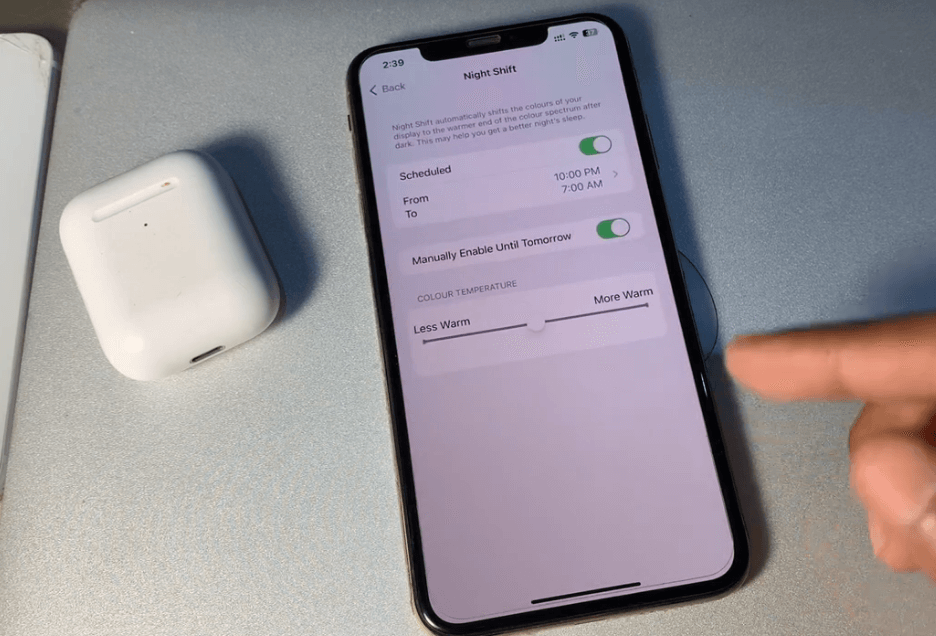
Via Settings
True Tone is a feature that auto changes display colours and brightness to merge with the surroundings. Turn it off via the control center, as mentioned before, or via settings as given below.
You may be familiar with using light and dark colour themes on your iPhone. A lot of people prefer the dark color theme as it’s ideal for low-light environments. But in instances where you have to use your iPhone out under the scorching sun, it is better to disable the Dark mode.
You can customize the Dark Mode schedule by tapping Automatic and then Options to either use a Sunset to Sunrise or Custom Schedule.

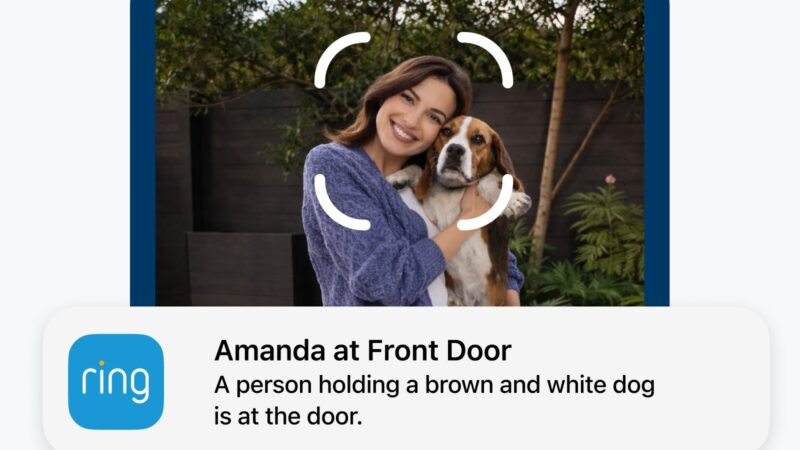
Ring Familiar Faces is now rolling out in the UAE, allowing users to identify known visitors and receive personalized notifications from compatible Ring devices.

Ring TAKE encryption announced as its future default, giving users greater control over video encryption while retaining access to cloud-based security features.

Sonos 27 launches with AI controls, ChatGPT integration, a redesigned app, Beam Ultra soundbar and Ace Ultra headphones.
 GDGTME Team
 Joshua James