Auto brightness, Attention Aware Features and True Tone Display are the essential features to be looked over if your iPhone's brightness keeps dimming.
You are out and amid something crucial. You are getting calls on your iPhone, but you can barely see the screen because of the unexpected dimming. Anyone will go nuts in such a circumstance. What if you can troubleshoot your iPhone screen dimming with a little patience? Let’s see how we can fix screen dimming on an iPhone.
Like in any smartphone, the first thing is to disable the Auto Brightness. By this, we mean taking sole manual control over the brightness of the screen and preventing your device from automatically adjusting screen brightness depending on ambient light conditions.
How to disable Auto Brightness?
Via Control Center
Open the Control Center by swiping down from the upper-right screen corner or swiping up from the bottom edge.
Drag the brightness slider (sun icon) up or down to adjust brightness.
Via Settings
Go to Settings.
Click on Display and Brightness
Drag the slider to adjust.
Turning off the Auto Brightness
Go to Settings.
Tap Accessibility.
Click on Display and Text Size.
Scroll down and toggle off the Auto Brightness.
After disabling Auto Brightness, reboot your phone and check if the screen dimming is resolved. One thing to remember is that the higher you set the brightness, the higher the battery will drain.
Turning off Attention Aware Features
Attention Aware Features include iPhone features such as face recognition. Most of these features identify your Face ID and respond accordingly. If you are in a hurry and your face isn’t recognized, there is a chance that the screen stays dimmer. In that case, you can turn off Attention Aware Features.
Go to Settings.
Tap Face ID & Passcode.
Enter the passcode if prompted.
Toggle off the Attention Aware Features.
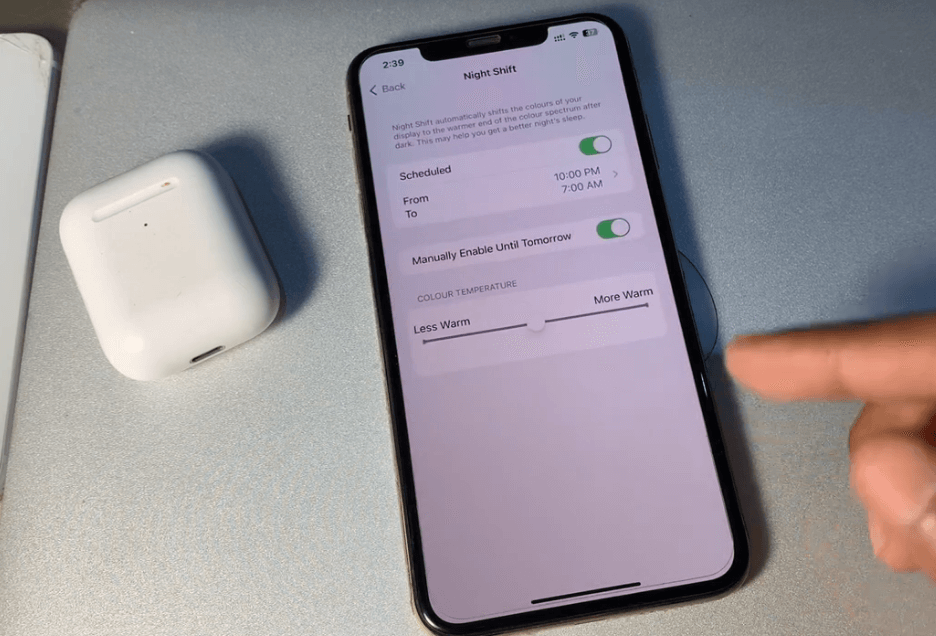
Another way to stop screen dimming in iPhones is to adjust the shifts, tones and modes. Considering your eye protection, the Night Shift auto adjusts your display colours to warmer tones. There are two ways to set it off.
Open the Control Center
Tap on the sun icon to find the brightness control slider.
From the three options at the bottom, toggle off the Night Shift.
Source: iUnlockTech
Via Settings
Go to Settings.
Tap Display & Brightness.
Schedule the Night shift to on or off and also adjust the colour warmth.
True Tone is a feature that auto changes display colours and brightness to merge with the surroundings. Turn it off via the control center, as mentioned before, or via settings as given below.
Settings
Display & Brightness
Toggle True Tone off.
You may be familiar with using light and dark colour themes on your iPhone. A lot of people prefer the dark color theme as it’s ideal for low-light environments. But in instances where you have to use your iPhone out under the scorching sun, it is better to disable the Dark mode.
Open Settings
Display & Brightness.
Choose Light mode to disable Dark mode.
You can customize the Dark Mode schedule by tapping Automatic and then Options to either use a Sunset to Sunrise or Custom Schedule.
Joshua James is a technology writer and reviewer at Gadgets Middle East. He regularly tests and reviews a wide range of consumer electronics, offering clear and practical insights based on everyday use and hands-on evaluation.
There are environments where smartphones are worn down long before they suffer a dramatic accident. Heat lingers for hours, dust settles into every exposed surface and water appears through splashes, humidity or sudden contact. None of these conditions needs to destroy a phone immediately. Their impact is often gradual, building through repeated daily exposure. This […]
Overview Intel’s Core Ultra 200S Plus lineup, better known as the Arrow Lake Refresh, exists to answer a question the company has been dodging for over a year: can Arrow Lake actually compete at the price points that matter most? The Core Ultra 5 250K Plus, launched at $199, is Intel’s clearest answer yet. Paired […]


 GDGTME Team
 Joshua James