
5 UGREEN Charging Accessories to Consider for Your Next iPhone
5 UGREEN Charging Accessories to Consider for Your Next iPhone
The most favourable and appreciable digital interaction for Samsung users with the wallet is its integration with Samsung Pay (Samsung’s mobile payment app).
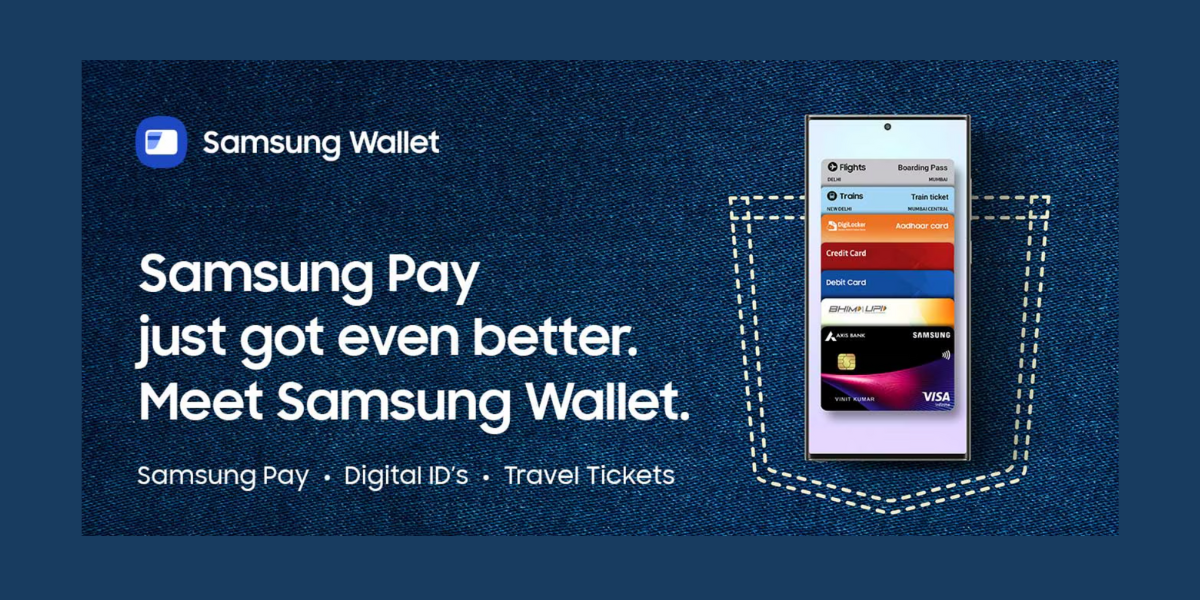
Launched on June 16, 2022, Samsung Wallet is a compact and unified app for managing all your essentials on an Android phone. The following guide will help you learn how to store credit cards and secure logins in Samsung Wallet.
Similar to any e-wallet, Samsung aids you in carrying out financial transactions. You can add credit or debit cards to pay for items at supported stores. The wallet also helps you use gift cards and grants cashback rewards. The outstanding features like fetching credentials and passwords while interacting digitally with other apps make it more convenient.
The most favourable and appreciable digital interaction for Samsung users with the wallet is its integration with Samsung Pay (Samsung’s mobile payment app). This makes the wallet even more suitable as it also includes the features and benefits of Samsung Pay. The Samsung Pass, digital asset management, digital home and car keys are the other features to be mentioned.
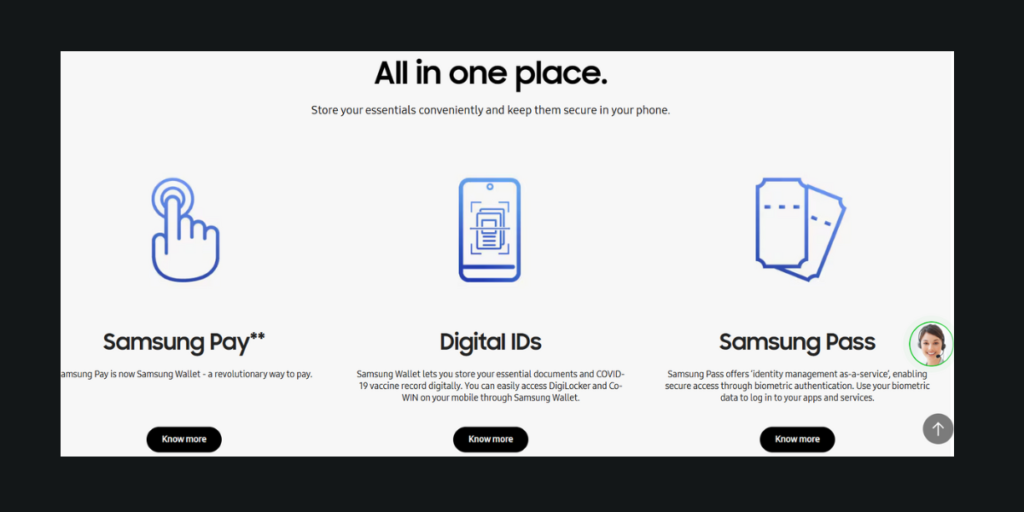
Besides transactions, the wallet acts as a locker to store your government, professional, student and personal information. These credentials include digital IDs, licenses, health passes and even vaccine certificates. You can also store website and app passwords. All you need is your fingerprint and iris authentication to keep them safe.
Firstly, a Samsung handset that is compatible. The phone should have NFC or MST communications technology to enable contactless payments. Secondly, you need a credit or debit or gift card from a financial institution, preferably a bank. Now, as you have the prerequisites, you have to set up a PIN, or a fingerprint/ iris authentication (facial scan) to authenticate payments on your phone. This is part of online verification to prevent unauthorized access to your wallet. Once done, you need a Samsung account for the Wallet to work.
Once you create the account, you must import the features you’ll need in the wallet. If it’s that you already have a Samsung Pay account, the features will automatically merge with the Samsung Wallet. Let’s see how to create a Samsung account.
The Samsung Wallet app may ask for your permission to your location, camera, contacts, files and media and physical activity (for car keys), nearby devices and more. Enable these options for the smooth functioning of the app. If you don’t have a Samsung Pay app, the Wallet app will auto-fetch all your information while registering. This happens because your phone number and email are linked to your bank account.
Like Apple Pay for iPhone users and Google Wallet for Android users, Samsung Wallet is a single-stop resource for your essentials. By that we mean, you can even store your passwords here. Let’s see how it is done.
Managing your password is the duty of Samsung Pass.
Open the Samsung Internet browser. (It’s ok if you forget your password. Whenever you visit a new website and fill in a password, the browser will prompt you to save the password in Samsung Pass. So, it is all safe there!)
Later if you wish to view the list of login details and passwords, you can get it on the Samsung Pass section on the Wallet app home screen.
Apart from managing the passwords, Wallet will add and verify your Government IDs. This is done by Samsung partnering with respective government agencies. This feature helps you organize your confidential information all in one place. Here is how you do it.
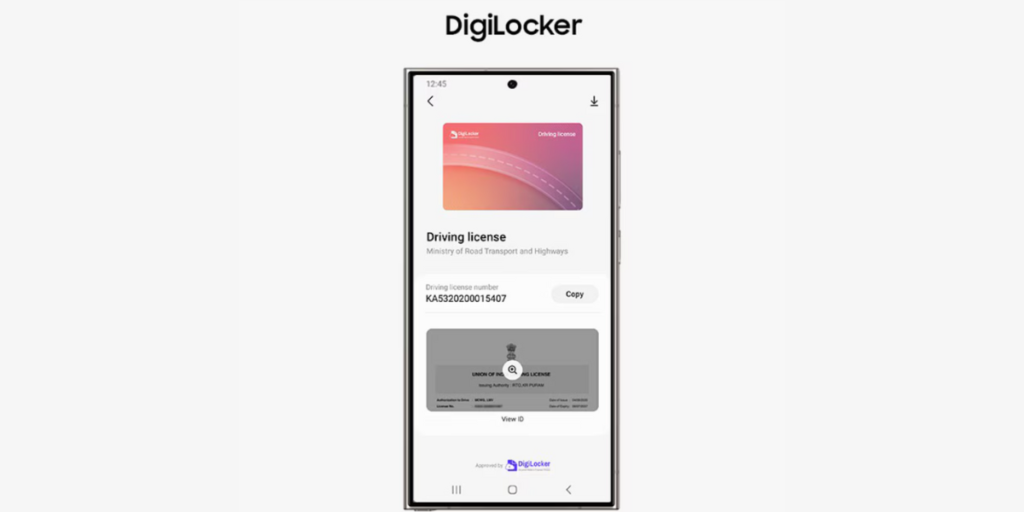
Once this is done, you need not worry about your government IDs. Any change or update will be automatically reflected in the government documents in the Wallet app.
You can add a credit or debit card for payments following the steps below.
Now if you want to manually add a credit or debit card, tap Add card manually. Type the card number and the expiration date. Enter your name, expiration date, security code and ZIP code. Tap Next. Go through the Terms of Service and tap Agree to all. You will then have to verify your card through SMS or email or by calling your bank and entering an activation code. You can make Samsung Wallet as the default payment app by tapping Set as default > Set.
You can also check the latest credit card transactions and current bank account balances using the app. The Wallet app can also support third-party digital wallets linked to your phone number and government IDs. You can also use the Wallet app to pay bills online. Recharging your phone is also now easy with the Samsung Wallet app. And you know what? You can even make offline payments with Tap and Go. The only requirement for making offline payments is that the merchant establishments should also support Samsung Pay.
Samsung Wallet, also compatible with Samsung smartwatches, will soon be coming in other Samsung gadgets as well. Meanwhile, let’s make the best use of Samsung Wallet and make our lives easier!
Also Read: How to create captions for Instagram posts?


5 UGREEN Charging Accessories to Consider for Your Next iPhone

Reduce Input Lag on a Gaming Monitor: fixing it usually means working through your settings systematically rather than blaming any single piece of hardware.

How to Fix Common Wi-Fi and Router Problems at Home: A slow or unreliable Wi-Fi connection does not necessarily mean that your router needs to be replaced.
 GDGTME Team